Build
Tools and integrations
Connect actions your agents can take.
Tools give agents hands
A prompt lets an agent talk. A tool lets it do something: check an order, book a slot, create a ticket, write a row to a sheet. You connect a tool once at the workspace level under Tools, and from then on it is available to every agent as an action.
The list shows each connected tool with its name, status, who created it and when, plus a tool sharing toggle and row actions to edit or delete. Deleting warns you first: disconnecting removes the connection and any agents using that tool lose access, so check which agents depend on it before you confirm.
The catalog
Add Tools opens a grid of everything you can connect. Each card shows the logo, the name, a short description and a badge counting the actions that integration exposes. Search by name, or narrow the grid with the filter chips:
- All, Custom, CRM, Ecommerce, Customer Support & CX
- Developer Tools, IT Services & Management, Scheduling, Google Workspace
The library covers the systems voice agents usually need to reach: scheduling like Cal.com, CRM like Hubspot, Salesforce and Zoho, support desks like Zendesk and ServiceNow, commerce like Shopify, messaging like WhatsApp, telephony platforms, and the Google Workspace set including Sheets, Gmail, Calendar, Drive, Docs, Contacts, Forms and Tasks.
Connect a pre-built integration
- Press Add Tools and pick the integration you want.
- Authenticate. Most integrations ask for an API key, which you paste into the configurator. Others use OAuth: you are sent to the provider to approve access and returned to VoiceSquad once it is granted.
- Choose the actions to enable. Every integration exposes a fixed named set, for example Cal.com offers Create Booking, Get Available Slots, Cancel Booking, Reschedule Booking, List Bookings and Get Event Types, while a CRM exposes far more across contacts, companies, deals and tickets.
- Save. The tool now appears in the list, and in every agent's action picker.
Custom tools
When nothing in the catalog fits, build your own. Two kinds are configurable today.
| Type | What you configure | Reach for it when |
|---|---|---|
| HTTP Request | Method, URL, headers and request body, plus how the response is handled. | You already have an API, internal or third party, that the agent should call. |
| Custom Function | The function itself, written in Python in an in-browser editor. | The work is logic rather than a call out: shaping data, a calculation, a decision. |
HTTP Request
Set the method and URL, add any headers your endpoint needs, and define the request body. Then choose what the agent gets back: Return the full response hands over the whole payload, or Return a specific field extracts one value with a JSONPath expression such as $.store.book[0].title. Prefer the specific field. An agent reading one clean value speaks more accurately than one handed a large nested object.
Custom Function
A custom function is defined in Python directly in the browser. Write the signature and the logic, save, and it becomes an action like any other. Use it for the small pieces of glue that do not deserve a service of their own.
Using tools in an agent
Connecting a tool does not give any agent access to it. You still choose per agent which actions it may take.
- Open the agent and expand the Actions accordion in the middle panel.
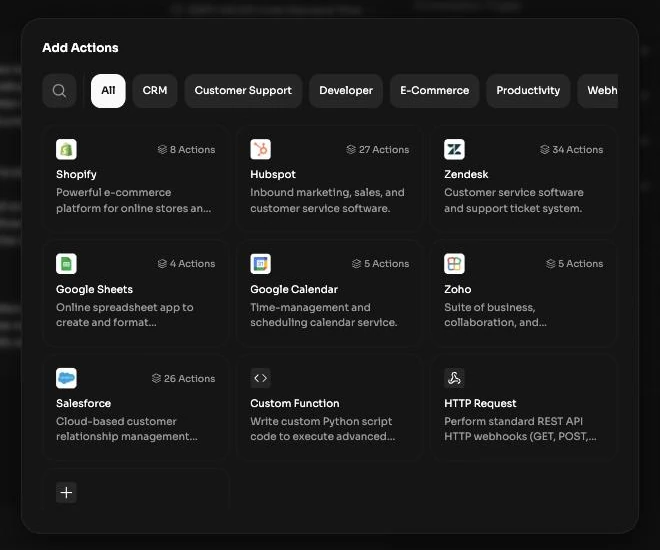
- Press + to open Add Actions, which lists your connected tools and the wider catalog.
- Select the actions this agent should be able to take. Each one appears in the accordion with its icon and name.
- Open an action to set its execution feedback, then test the agent and publish.
The action config panel controls what the caller experiences while the tool runs, which matters more than it sounds: silence during a two second lookup feels like a dropped call.
- Talk while waiting, on or off, decides whether the agent fills the gap at all.
- The waiting message can come from a prompt, so it varies with context, or be a fixed phrase per language.
- A typing sound can play while the request is in flight.
- Custom tools take a request timeout, so a slow endpoint cannot hold the conversation open indefinitely.
In the playground, every tool call the agent makes is rendered inline with its name, status, arguments and result, so you can see exactly what was sent. See testing your agent, and the agent editor for the surrounding settings.
Missing an integration
At the end of the catalog grid there is a Request an Integration card. It opens a short form for telling us what you need connected. In the meantime, an HTTP Request tool against the provider's own API usually unblocks you today.