Analyse
Conversations
Every call, transcript and evaluation.
What Conversations shows you
Conversations is the record of every call your workspace has handled: live, historic and test. Each row is one call session, and opening a row gives you the recording, the transcript, the analysis your agent produced, the exact payload the call started from, and the evaluation of how the agent behaved.
Calls appear here whether they were placed by a carrier, by the built-in playground, or by your own systems through the trigger API. A live call appears while it is still in progress and fills in as it completes.
The list view
The header reads Conversations, View live, historic and test conversations here. Above the table you get three controls: a filter toggle that opens the filter popover, a search box (Search by agent, date, status...), and a row of chips showing the filters currently applied, with Clear all to reset them. The table is paginated on the server, so filters and sorting apply to the whole history, not just the page you are looking at.
Table columns
| Column | What it holds |
|---|---|
| Date | When the call happened. Test calls carry a Test Call badge here. Sortable. |
| Agent | The agent that handled the call, with a direction icon and the version capsule (for example V3) so you know which published version answered. |
| Goal status | Success, Failed, or "--" when the call has not been evaluated yet. |
| Duration | How long the call lasted. Sortable. |
| Total Turns | The number of back-and-forth turns in the conversation. Sortable. |
| Call Cost | What the call cost your workspace balance. |
| Call Status | How the call ended up from the telephony point of view. See the values below. |
Call status values
| Status | Meaning |
|---|---|
LIVE | The call is in progress right now. Only the transcript is available while it runs. |
NOT ANSWERED | Nobody picked up. There is no recording and no analysis for these calls. |
VOICEMAIL | The call reached an answering machine rather than a person. |
IVR/BOTS | The call was answered by an automated system rather than a person. |
COMPLETED | The call connected and ran to the end. |
BUSY/FAILED | The call could not be completed. This value appears in the filter vocabulary. |
Goal status
Goal status is separate from call status: it answers whether the conversation achieved what you asked the agent to achieve, not whether the phone was picked up. It reads Success when the goal was achieved, Failed when it was not, and No Outcome when the call produced no verdict. The verdict comes from the Conversation Goal and the Track Outcomes list you configured on the agent, so if this column looks empty across the board, check that the agent has outcomes defined.
Filtering
The filter popover groups every dimension into three sections. Reports uses the same filter system, so a filter you learn here works there too.
Essential
- Direction: Incoming or Outgoing.
- Call Status: the values listed above.
- Conversation Goal Status: Success, Failed or No Outcome.
- Agent: pick an agent, and optionally a specific published version of it.
- Date Range: Today, Last 7 days, Last 30 days, Last 90 days, or Custom.
- Sentiment: Positive, Neutral or Negative.
Quality
- Disconnection Reason: User hangup, Agent ended, Human transfer, Timeout, Network error.
- Human Transfer: whether the call was handed to a person.
- Call Abandoned: whether the caller dropped out before the conversation got anywhere.
- Quality Flag: Has hallucination, Has detected loop, Low instruction following.
Other
- Call Type: Live or Test.
- Duration: a range, in seconds or minutes.
The call detail slider
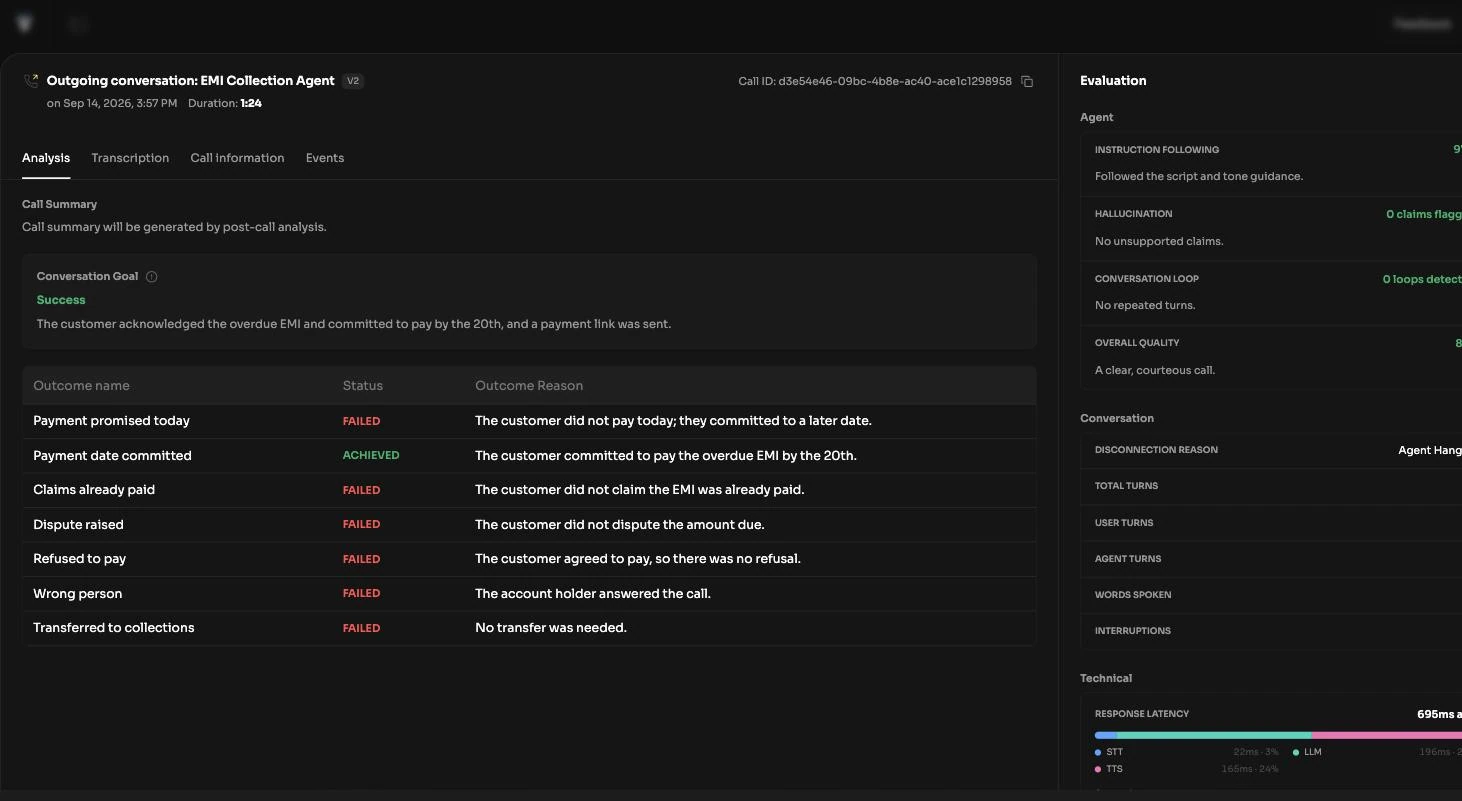
Click any row to open the detail slider. It splits into a wide left side with the recording and the tabs, and a narrower right side holding the evaluation.
The recording player
The player sits at the top of the slider, and what it shows depends on the state of the call:
- For a completed call, the recording plays here and can be downloaded from the slider header.
- While a call is still live you see Call recording will be generated after the call.
- For an unanswered call you see Call was not answered, no recording available.
Analysis
The Analysis tab is the post-call read of what happened. It holds three things:
- Call Summary: a short written account of the conversation.
- Conversation Goal: the verdict, the reasoning behind it, and the goal definition the agent was judged against, so you can see whether a Failed verdict is the agent misbehaving or the goal being written too tightly.
- An outcomes table with one row per outcome you defined in Track Outcomes, each with its Status and its Outcome Reason.
Transcription
The Transcription tab is the full turn-by-turn conversation. Copy transcript puts the whole thing on your clipboard, which is the quickest way to paste a real conversation back into a prompt you are refining. This is the only tab available while a call is still LIVE.
Call information
The Call information tab shows the API payload and session context that were sent into the call, which is how you confirm that the variables your system passed actually arrived. Below that it lists the post-call webhook delivery attempts: what was sent and how each attempt went. If there is nothing to show you get No webhook events were sent for this call. Webhooks are delivered only for live calls with a configured webhook URL. See post-call webhooks for how to set one up.
Events
The Events tab is the lower-level log of the call: the sequence of events the platform recorded as it ran. Use it when the transcript looks fine but something around the call did not, for example a tool call that never returned or a webhook that was skipped.
Evaluation
The panel down the right side is the evaluation: automated checks on how the agent conducted itself, covering instruction following, hallucination and loop detection among others. It is the same evaluation view you get on a simulation test case, so a call and a test case can be compared like for like. Before the call ends you see Evaluation data will be computed after the call ends, and where there is nothing to score, No data to evaluate.
NOT ANSWERED call has no conversation to analyse, so the Analysis and Transcription tabs are hidden and the slider opens on Call information instead.Test calls
Test sessions land in this same list, marked with a Test Call badge on the Date column: runs from the editor playground, and calls placed from Test Phone Call. Only Test Phone Call puts a real call over the carrier, and that one is billed like a live call. Either way, filter Call Type to Live when you want your reporting to reflect production traffic only, and to Test when you are reviewing what you tried before a publish.