Build
Agents and versions
Drafts, publishing and version history.
The Agents list
Agents in the sidebar is the home of every agent in the workspace, headed Build, create and test agents. The table shows the agent name with an icon for its call direction and, for anything that has been published, a version capsule such as V3. Alongside it you get Status, Created by and Last updated on. Name and Last updated on are sortable, the list is paginated, and an empty workspace reads No agent created.
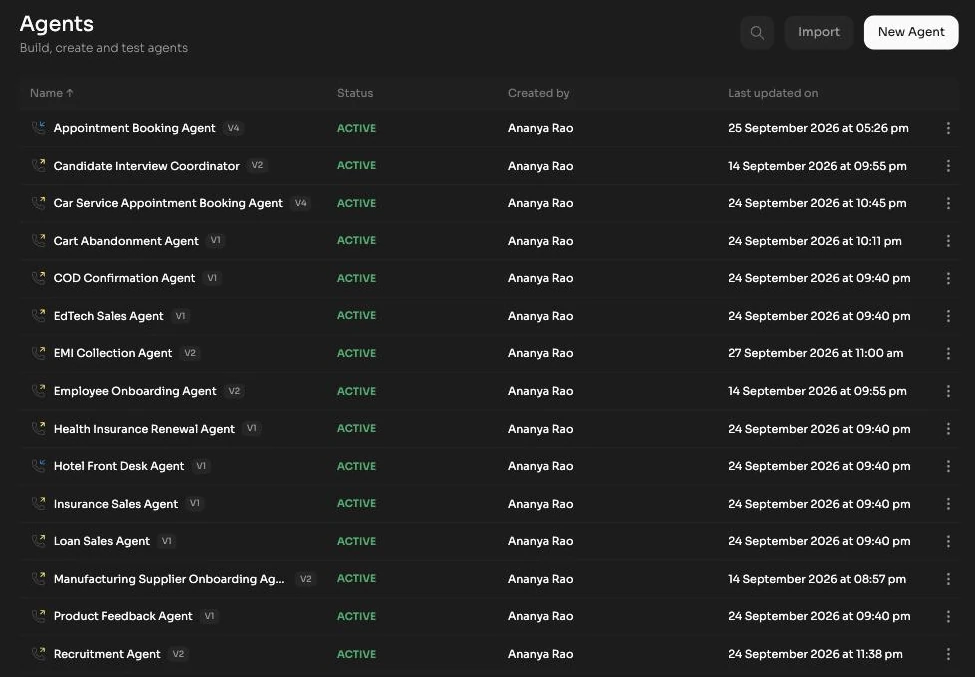
Three controls sit above the table:
- Search agents by name... filters the list as you type.
- Import rebuilds an agent from a previously exported JSON file.
- New Agent opens the Create a new agent modal, which asks only for an Agent name and then creates a real draft and opens the editor.
The per row menu carries three actions:
- Clone agent copies the agent, config and all, into a new draft you can diverge from.
- Copy API URL puts the agent's trigger URL on your clipboard. It appears on outgoing agents only, since that is the direction you start programmatically. See triggering calls.
- Delete agent asks for confirmation, with wording that depends on the agent's status. Deleting a live agent warns that incoming calls stop immediately. Deletion cannot be undone in any case.
Draft, Published, Older
An agent is not one object, it is a stack of versions. Understanding the three states is the difference between confident iteration and being scared to touch a working agent.
| Status | What it is | Editable | Takes calls |
|---|---|---|---|
| Draft | A work in progress copy of the config. A brand new agent is a draft from the moment it is created. Draft rows show no version capsule in the list. | Yes, and it autosaves as you type | No |
| Published | The version currently serving calls. At most one published version exists per agent at any time. | No, open Edit to clone it into a new draft | Yes |
| Older | A version that used to be published and was demoted when a newer draft went live. Kept permanently as history. | No, read only | No |
Version numbers are monotonic and are never reused: V0, V1, V2 and so on. If you publish four times you have V3 published and V0 to V2 in history, whatever was rolled back or abandoned along the way.
Editing clones the published version
Pressing Edit on an agent that is live or paused does not modify the live version. It clones the current published version into a fresh draft and opens that. The published version keeps handling calls untouched while you work. An agent can have more than one draft at a time, which is fine: extra drafts are reachable from the History panel in the editor.
Version History
The History icon in the editor header opens a timeline of every version: drafts at the top, then the published version, then older ones. Clicking a draft switches the editor to editing it. Clicking a published or older version switches the editor to viewing it, locked, with the note Click Edit to clone this version and make changes. To change an old version, open it and press Edit to clone it into a new draft.
Publishing
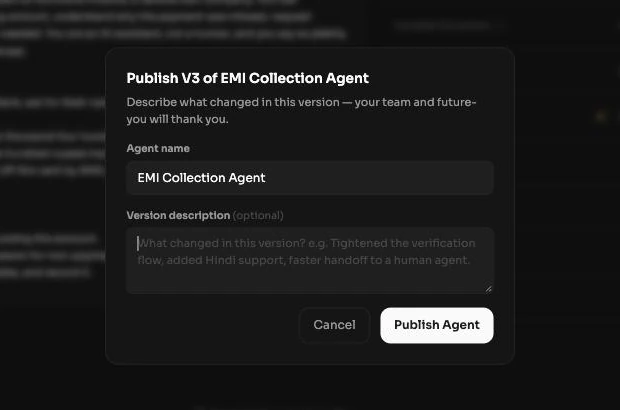
Publish Agent in the editor header takes the draft live. The modal is titled Publish your agent the first time, and Publish V2 of Billing Support style on any later publish. Both ask for two things:
- Agent name, pre-filled and editable.
- Version description (optional), a note about what changed. Fill it in. It is the only label your team has when scanning history six weeks from now.
On success you see Published successfully, with a line in the form Billing Support is now live on V2. On a republish it adds The previous version moved to your version history. From that moment the new version answers calls.
Rolling back
There is no unpublish. To go back to an earlier version, open History, select the older version you want, press Edit to clone it into a new draft, and publish that draft. The version you rolled back to returns to service under a new version number, and nothing is lost from the history.
Pause and resume
A published agent can be taken out of service without deleting or unpublishing anything. Pause Agent stops it handling calls and leaves the configuration and version history exactly as they were. Resume Agent puts it back into service. Use pause when you need traffic to stop right now and you do not yet know what the fix is.
Export and import
The Export icon in the editor header downloads whatever version you are looking at as a JSON file named agent-v3.json. The file carries the prompt, the configuration and the trigger and phone setup.
- Open the agent and, if needed, use History to select the version you want to capture.
- Press Export and keep the JSON file.
- In the target workspace, press Import on the Agents list, or on the Home start card, and choose the file.
- The agent is recreated as a draft. Review the trigger and phone settings, since numbers and connected tools are per workspace, then publish.
Export and import is the practical way to move an agent between a staging workspace and production, to keep a config in your own version control, or to hand a working agent to someone else's workspace. For the settings themselves, see the agent editor.