Build
The agent editor
Prompt, voice, behaviour and every setting.
Three panels
The editor is where an agent actually gets built. It opens when you create an agent, press Edit on a published one, or select a version in History. Everything lives in three columns inside one card.
- Left: who the agent is. Voice, language, timezone, the universal prompt, how the call opens, and what it is trying to achieve.
- Middle: what the agent can do. A stack of accordions covering the trigger, actions, knowledge, transfers, speech and call behaviour, and webhooks.
- Right: the playground. Test Audio and Test Chat run against the config as it stands right now. See testing your agent.
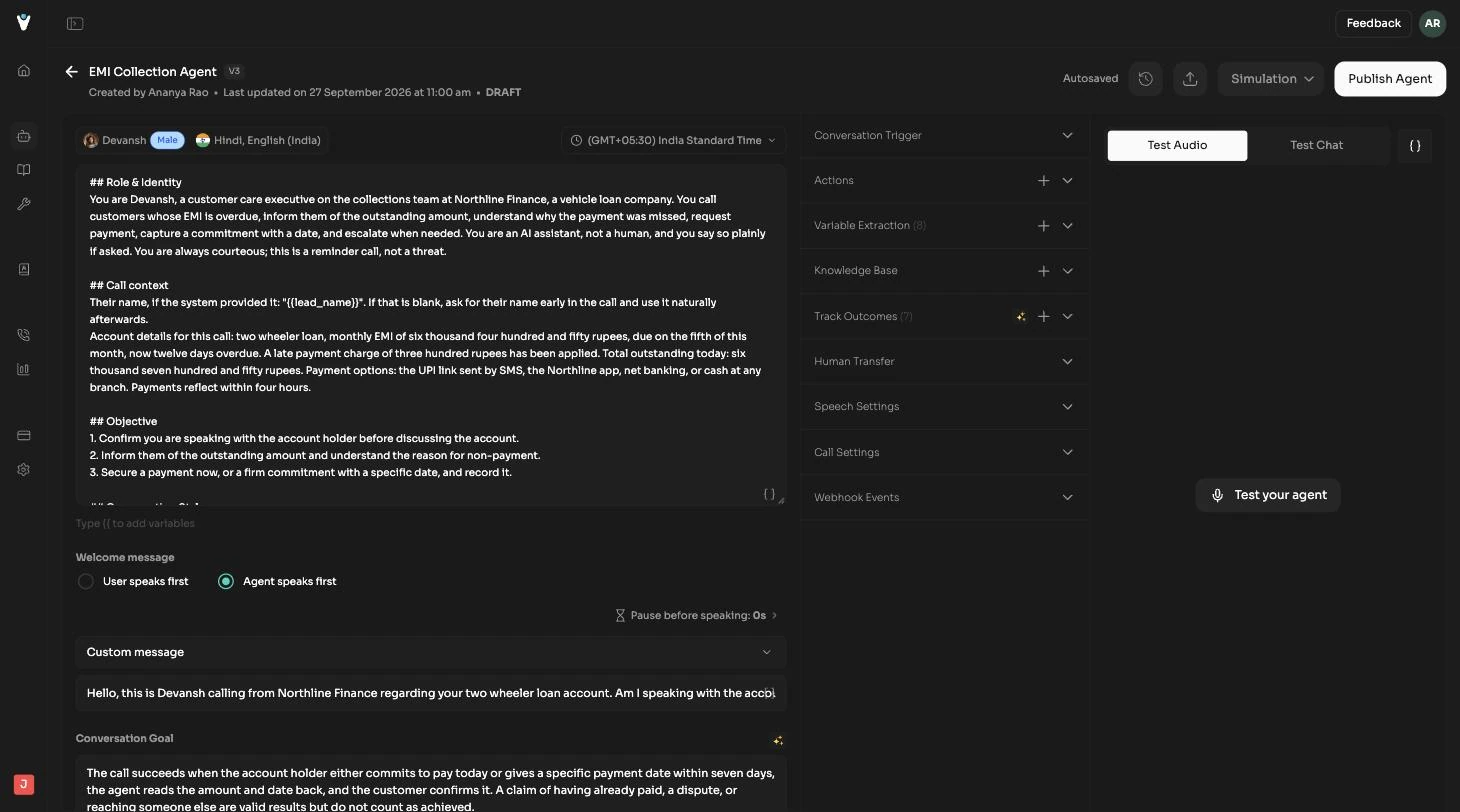
The header bar carries the agent name, its version capsule and status, plus History, Export, the Simulation dropdown, and either Edit and Pause Agent when you are viewing a published version, or Publish Agent when you are editing a draft.
Left panel
Voice, language and timezone
The chips at the top of the panel show the current voice and language. Clicking them opens the voice picker, the Voice Select modal, where each voice shows its name, a gender pill, a language flag and chips for the languages it speaks. Next to it, the timezone popover sets the clock the agent reasons with when a caller says something like tomorrow morning. It defaults to your workspace timezone from Settings, and each agent can override it.
Universal prompt
The large textarea is the agent's brief: its role, tone, the rules it must not break, and the shape of the conversation. Typing {{ brings up the variable picker, hinted in the field as Type {{ to add variables. Variables resolve at call time against the payload sent into the call and against anything the agent has extracted so far.
Greet the caller by name. You are calling {{customer_name}}
about invoice {{invoice_id}}, which is {{days_overdue}} days overdue.
Never quote a figure that is not in the payload.
Welcome message
Two radio options decide who opens the call, and each has its own follow ups.
- Agent speaks first: set Pause before speaking in seconds, then choose the greeting mode. Create a dynamic greeting from the universal prompt lets the agent write its own opener in context, or Custom message takes an exact greeting you type.
- User speaks first: choose Stay silent till the user speaks first, or Agent speaks if the user doesn't start the conversation within the timeout duration. The second option adds a Silence timeout duration in seconds and a message mode of Dynamic message based on prompt or Static message.
Conversation Goal and End call instructions
Conversation Goal is one plain statement of what a successful call achieves. It is what the evaluation in Conversations judges each call against, so keep it checkable rather than aspirational. End call instructions describe when and how the agent should wrap up, and support variables too. Both fields have a Generate with AI sparkle button that drafts a suggestion from your prompt, which you then edit.
Middle panel accordions
Each accordion is collapsible and shows a count of what is configured inside it, so you can read the whole agent at a glance without opening anything.
Conversation Trigger
Open by default, this decides how a call reaches the agent. Call direction is Incoming or Outgoing.
- Incoming: pick a workspace number under Incoming call to. If that number is already linked to another agent you are warned here, and again when you publish.
- Outgoing: set Outgoing call from and Outgoing call to. Each accepts a literal number or a payload variable, so a campaign can pass the destination in per call. An inline picker lists your numbers and a link jumps into the payload schema editor.
Outgoing agents also get an Outbound API section holding the trigger URL and a Copy cURL helper, which gives you a ready made request to start calls from your own systems. Full request and response detail is on triggering calls.
Actions
Actions are the things the agent can do mid call: book a slot, look up an order, write to your CRM. The + button opens Add Actions, which browses your connected tools and the integration catalog. Each configured action shows its icon and name with edit and delete controls, and opens an action config panel where you set how the agent behaves while the call is waiting for the result: whether it talks while waiting, what it says as a prompt or a fixed per language phrase, whether to play a typing sound, and the request timeout for custom tools. Connecting tools in the first place is covered in tools and integrations.
Variable Extraction
Declare the values the agent should pull out of the conversation, for example a policy number or a preferred callback time. Each entry has a name and extraction instructions, edited in the Extract Variable modal. Extracted values are usable as variables later in the same call and are visible on the call record afterwards.
Knowledge Base
Attach one or more knowledge bases so the agent can answer from your documents or website instead of guessing. The + opens a picker of the workspace's knowledge bases; each attached one can be opened in a new tab for editing, or detached. See knowledge base.
Track Outcomes
Outcomes are the named results you want measured on every call, each with a Success or Failed verdict. Add them with + through the Conversation Goal modal, giving each a name and its success criteria, or use the sparkle button to generate suggestions from your prompt and conversation goal. Outcomes drive the Goal status column in Conversations and the goal completion figures in Reports.
Human Transfer
Set what happens when the agent needs to hand the call to a person. Transfer to takes one of two shapes:
- Static Destination: a single phone number or SIP URI, which can itself be a variable.
- Dynamic Route: a routing instruction in plain language, for example send support questions to one number and sales to another, and let the agent choose.
Talk while waiting keeps the caller company while the transfer connects, either from a prompt or as a fixed message per language, and Transfer ring duration sets how long to ring the destination, from 5 to 90 seconds, before giving up.
Speech Settings
How the agent sounds and how it handles turn taking.
- Background Sound, with its own volume control, for ambience behind the voice.
- Voice Speed, Response Eagerness and Interruption Sensitivity sliders. Eagerness trades speed against letting the caller finish; sensitivity decides how easily the agent stops talking when interrupted.
- Pronunciation rules that map a word to how it should be said, for brand names and product codes.
- Boosted Keywords, a comma separated vocabulary list that makes recognition of your domain terms more reliable.
Call Settings
The guardrails that stop calls going wrong or running long.
| Setting | What it controls |
|---|---|
| Voicemail Detection | What the agent does when a machine answers: hang up, or leave a message that is either a static script or generated on the spot. |
| Call Screening | An announcement the agent uses when a call screening service answers instead of a person. |
| IVR Hangup | Ends the call when the agent detects it has reached an IVR menu rather than a person. |
| End Call on Silence | Hangs up after a stretch of silence, so dead calls do not sit open. |
| Reminder Message Frequency | How often the agent sends a reminder message while the caller stays silent. |
| Max Call Duration | A hard ceiling on call length, per call. |
| Ring Duration | How long an outgoing call rings before it is treated as unanswered. |
Webhook Events
Set a post call Webhook URL and VoiceSquad posts the finished call, transcript and evaluation to your server. Turn on authentication to add a custom header that your endpoint checks before trusting the request, Test URL fires a test event so you can confirm the endpoint is reachable, and Webhook Timeout sets how long we wait for your response, from 1 to 30 seconds. A schema viewer shows the exact event shape. Full detail is on webhooks.
The payload editor
The payload editor defines the JSON your systems may send in when they start a call. Each field has a key, a type, a required flag, a description and an example value. Every key you declare becomes a variable you can use in the prompt, the welcome message, the transfer destination and the outgoing numbers.
Autosave
Drafts save themselves. The pill in the header cycles through Autosaving… and Autosaved as you work, and shows Couldn't autosave if a save fails, in which case stop and retry before you keep editing. There is no save button, and nothing you type in a draft reaches live callers: the published version keeps serving until you press Publish Agent. Published and older versions are read only, so the pill does not appear when you are viewing them.