Build
Phone numbers
Import numbers and link them to agents.
Bring your own numbers
VoiceSquad does not sell you numbers. You keep your telephony relationship where it already is and import the numbers you own, which is why the page is headed Import phone number from your preferred telephony partner. An imported number can receive calls for an agent, or be the number an agent calls out from.
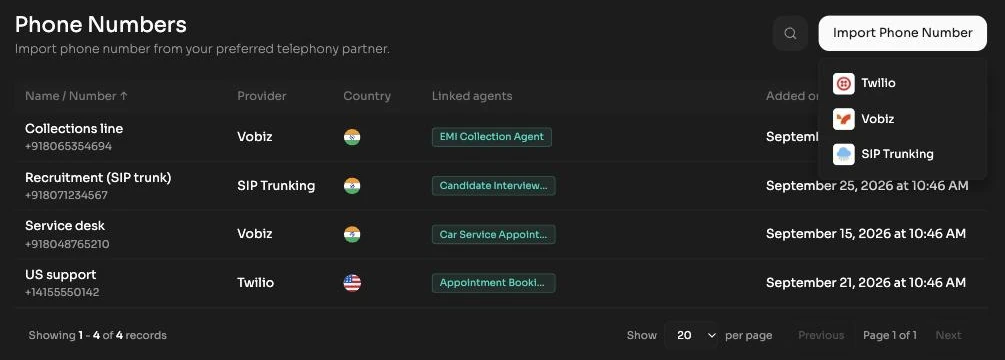
The list gives you a search box, Search by name, number or agent..., an Import dropdown, and a table of what you already have:
| Column | What it shows |
|---|---|
| Name / Number | Your label for the number and the number itself, with a copy to clipboard control. |
| Provider | Twilio, Vobiz.ai or SIP, whichever route the number came in on. |
| Country | The country flag for the number. |
| Linked agents | Which agents currently use this number. The column to check before you reassign anything. |
| Added on | When the number was imported. |
Import a number
The Import dropdown is per provider. Choose the one that carries the number and the form adapts to it.
- Twilio and Vobiz.ai connect through a saved credential holding the API access for that account.
- SIP connects to your own trunk instead. Rather than an API credential it takes your trunk authentication and a transport of TCP, UDP or TLS, matching how your trunk is configured.
- Press Import and pick the provider.
- For Twilio or Vobiz.ai, select a saved credential, or use the create new credential option to add one inline without leaving the flow. For SIP, enter the trunk authentication and choose the transport.
- Give the number a Label. This is the friendly name that appears everywhere the number is picked, so name it after its job, for example Support line IN, rather than after the provider.
- Fill the remaining provider fields and confirm. The number appears in the list, ready to link to an agent.
Saved credentials
A credential is your API access to a telephony provider, stored once at the workspace level and reused across every number from that account. You can create one inline during an import, or manage them all under the saved credentials tab in Settings, which shows the provider, account, name, how many numbers are linked to it, its status and when it was added, and lets you add, edit or delete.
Link a number to an agent
Numbers are attached inside the agent, not from this page. Open the agent and expand the Conversation Trigger accordion in the middle panel.
- Set Call direction to Incoming or Outgoing.
- For an incoming agent, pick the number under Incoming call to. If it is already linked to another agent, the picker tells you so.
- For an outgoing agent, set Outgoing call from to one of your numbers, and Outgoing call to to either a fixed number or a payload variable that your system supplies per call.
- Publish the agent. Until you publish, no calls route to the new configuration.
Removing a number
The row action removes an imported number from the workspace after a confirmation. Removing a number does not touch anything at your provider, you keep the number and keep paying for it there. It does break any agent still pointing at it, so check the Linked agents column first, move those agents to another number in the agent editor, and republish them before you remove it.