Build
Knowledge Base
Give agents your documents and websites.
What a knowledge base is for
A knowledge base holds the facts your agent should answer from: pricing sheets, policy documents, product pages, the FAQ section of your website. Attach one to an agent and, at call time, the agent retrieves the relevant passages instead of relying on what happens to be in its prompt. Put stable, factual, reference material here. Keep instructions, tone and rules in the prompt.
The list at Knowledge Base in the sidebar is headed Enhance your conversational agents with custom knowledge and shows every knowledge base in the workspace with its document counts. It has a search box, an Add Knowledge Base button, sorting and pagination, and a per row delete.
Create a knowledge base
Add Knowledge Base opens the Create Knowledge Base panel. Three of its choices are permanent, so read this section before you fill it in.
- Give it a Name and a Description. The description is what you and your team read when picking a knowledge base to attach to an agent later, so say what is in it and what it is for.
- Choose the Data Source: File to upload documents, or Website to crawl URLs. The panel says it plainly, the data source is fixed at creation and cannot be changed later.
- Set Media processing. Two checkboxes, Exclude images from processing and Exclude YouTube videos from processing, decide whether embedded media is read as part of your content. These are also fixed at creation for this knowledge base.
- For a Website source, decide on Data sync. Turn it on and set Sync every a number of days, weeks or months, and VoiceSquad re-fetches the sources on that schedule so the agent tracks your site as it changes. Unlike the settings above, sync can be changed later.
- Press Create. The knowledge base opens ready for documents.
The detail page
Open a knowledge base to manage its contents. The header counts how many documents are ready and how many are still processing, and carries the Upload Document button and a settings gear. The settings show your media processing choices read only, and let you change data sync on website sources.
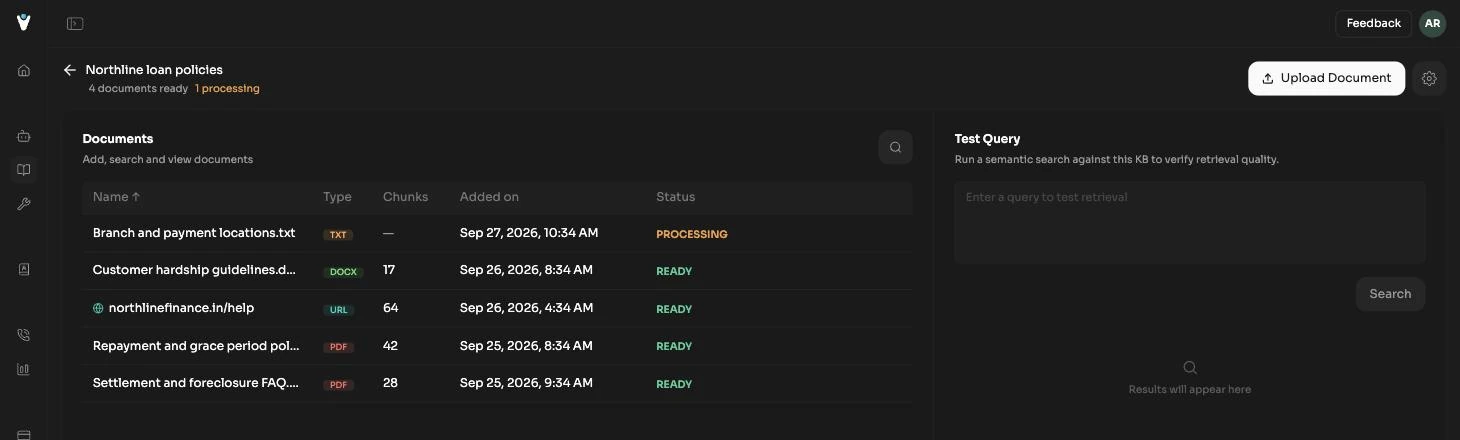
- Documents fills the left of the page: everything in the knowledge base, with search and a per row delete. Website knowledge bases add a per document Sync action, and a page level Sync now for refetching everything on demand rather than waiting for the schedule.
- Test Query fills the right. Type a question the way a caller would ask it and see what the knowledge base returns, with no agent involved. This is the fastest way to tell a retrieval problem from a prompt problem: if the answer is not here, no amount of prompt editing will fix the call.
Adding documents
Upload Document opens a panel that matches the data source you chose. A File knowledge base gives you a File tab where you drag and drop or browse for documents. A Website knowledge base gives you a URL tab where you paste one or more URLs to crawl. Uploads process in the background, and the header count tells you when they are ready to answer questions.
Attach a knowledge base to an agent
- Open the agent and expand the Knowledge Base accordion in the middle panel.
- Press + and pick one or more knowledge bases. An agent can use several.
- Test it in the right panel with a question that can only be answered from the documents. If the agent misses it, go back to Test Query on the knowledge base and check the content is actually retrievable.
- Publish the agent. Attachments, like everything else in the editor, only reach callers once published.
The edit icon next to an attached knowledge base opens its detail page in a new tab, deep linked as /knowledge-base?kb=..., so you can add a missing document without losing your place in the editor. See the agent editor for the rest of the accordions, and testing your agent for how to check retrieval in a real conversation.